Building automation workflows in Dailybot
Learn what workflows are, how they chain triggers and actions, and how to build your first automation using the visual workflow builder.
Workflows in Dailybot let you automate multi-step processes that would otherwise require manual coordination. Instead of reminding people to send updates, forwarding messages between channels, or chasing follow-ups, you define a set of rules once and let Dailybot handle the execution. The result is consistent, timely action without anyone needing to remember what comes next.
A workflow connects a trigger (when something happens) to one or more actions (what should happen next). You can think of it as an “if this, then that” system built directly into your chat platform, with enough flexibility to handle real-world complexity like branching, sequencing, and dynamic content through variables.
How to create a workflow
Start from the Dailybot web app. Click Automations & Add-ons in the sidebar, then click the Create Workflow button in the top right corner. Every workflow needs a name and a description. The name should be specific enough that anyone on your team can tell what the workflow does at a glance.
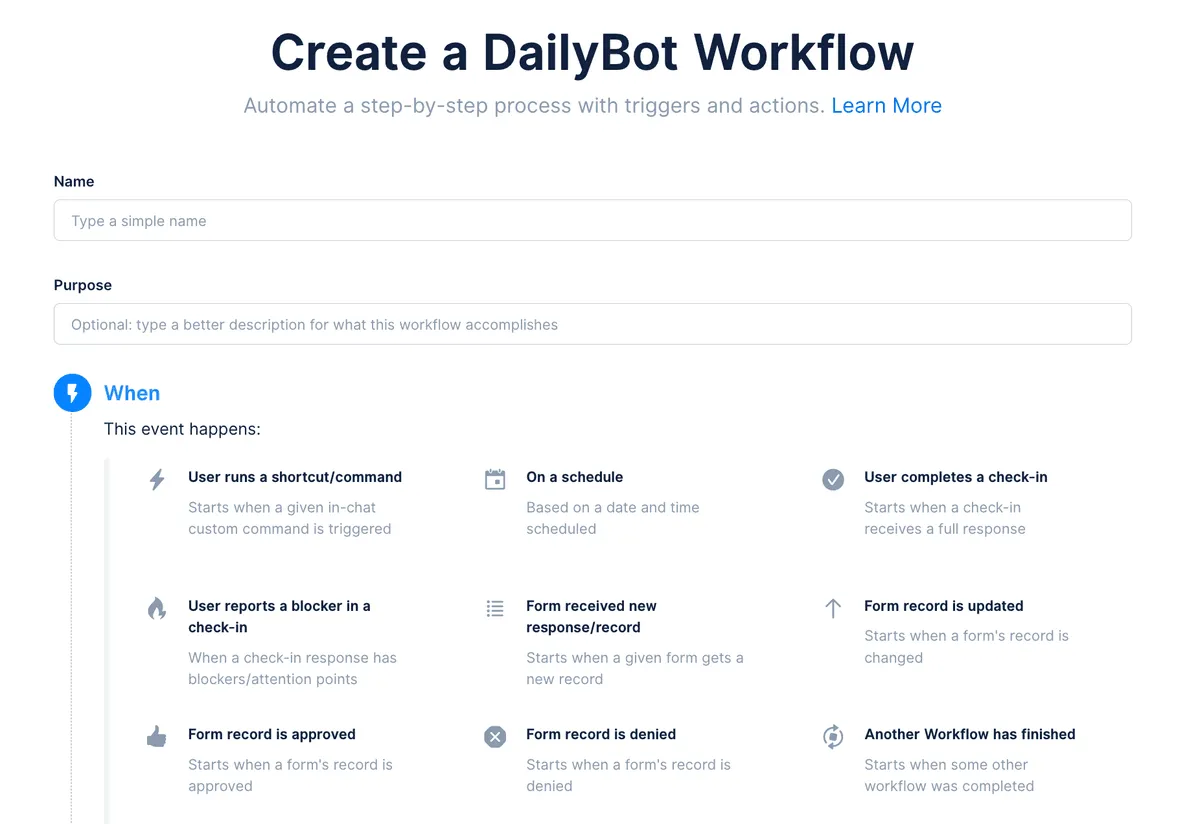
Once you’ve named your workflow, you’ll configure two things: the trigger (when it runs) and the actions (what it does).
Trigger events
Triggers define the “when” of your workflow. Dailybot offers a broad set of trigger types, so you can start automations from almost any event in your workspace.
Schedule-based triggers run at fixed times, like every weekday at 9 AM or every Monday morning. These are the backbone of recurring processes like standups, weekly digests, and periodic reminders. You set the cadence and timezone, and Dailybot handles the rest.
Event-based triggers fire when something specific happens. Dailybot supports triggers for these events:
- A user runs a shortcut or command
- A user completes a check-in
- A user reports a blocker in a check-in
- A form receives a new response
- A form record is updated, approved, or denied
- Another workflow finishes
- Activity is logged in Dailybot
- An event is sent to the Workflow Trigger API
- Kudos are given
- A user is added to the organization
- A user is added to or removed from a team
This variety means you can build reactive automations that respond to real activity, not just the clock. When a new team member joins, you can automatically send onboarding resources. When someone reports a blocker, you can notify a manager. When a form gets a response marked urgent, you can escalate it.
Actions
Actions define the “then” of your workflow. After a trigger fires, Dailybot executes one or more actions in sequence. The available actions include:
- Generate content with AI for dynamic, context-aware messages
- Send a chat message to a channel or direct message
- Send an email message to notify people outside of chat
- Run a command to trigger another automation
- Select a random form record for lottery-style picks
- Insert a form record to create data entries automatically
- Send a check-in reminder to prompt a team update
- Post a consolidated report to aggregate and share results
- Send a form reminder to nudge respondents
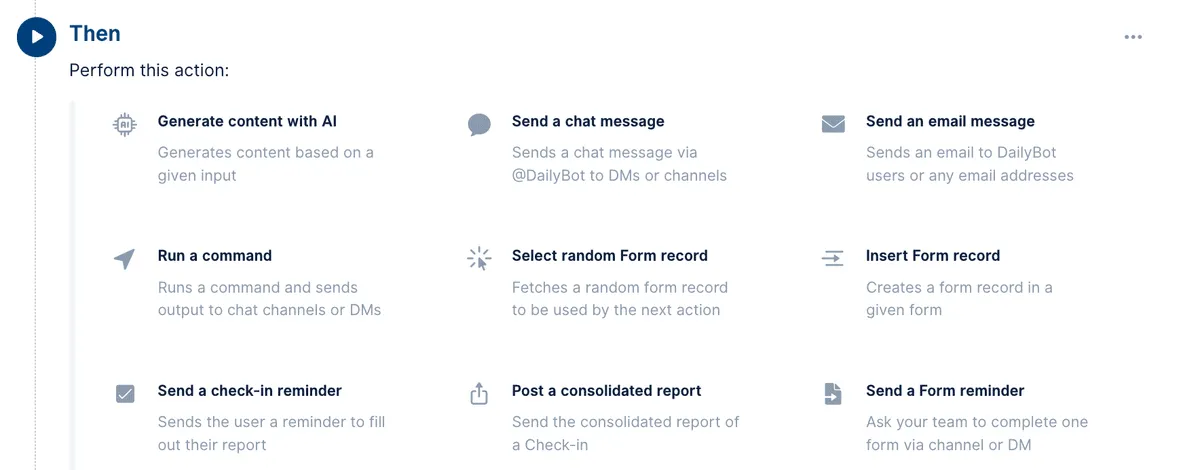
You can chain multiple actions together in a single workflow. For example, a workflow triggered by a check-in submission might first generate an AI summary, then post it to a leadership channel, and finally send an email to a stakeholder who doesn’t use the chat platform.
Common workflow patterns
Daily standup automation is one of the most popular patterns. Set a time-based trigger for your standup window, add a “send a check-in reminder” action, and follow up with a “post a consolidated report” action to share the results in a team channel. Everyone gets prompted, and the summary appears without anyone having to compile it manually.
Escalation workflows respond to critical events. Trigger on “user reports a blocker in a check-in” and add an action to notify the team lead via DM. You can add a second action to post in an escalation channel if the blocker isn’t resolved within a time window, creating a multi-level alert system.
Onboarding sequences trigger when a user is added to a team. Actions can include a welcome DM with key links, a check-in prompt after a few days to gather early feedback, and a form to collect equipment and access requests. This ensures every new team member gets the same experience regardless of who manages the onboarding.
Workflows vs. commands
Commands and workflows serve different roles in Dailybot’s automation toolkit. Commands are one-step, user-initiated shortcuts. Workflows are multi-step, often automatic sequences. In practice, they work well together: a command can trigger a workflow, and a workflow can run a command as one of its actions. Think of commands as the buttons your team presses and workflows as the engines running behind the scenes.
Dailybot workflows replace the manual coordination that eats up hours every week. Start with one high-frequency process, build a small workflow, and expand from there. Once your team sees updates arriving on time and follow-ups happening automatically, the value speaks for itself.
FAQ
- What is a Dailybot workflow?
- A workflow is an automation that connects a trigger (when something happens) to one or more actions (what should happen next), such as sending messages, prompting check-ins, running commands, or calling APIs.
- What types of triggers are available?
- Time-based (on a schedule), event-based (when a check-in is completed, a form response arrives, a command runs, kudos are given, a user joins, etc.), and condition-based (filters on fields, tags, or prior step outcomes).
- How do I create a workflow in Dailybot?
- Go to Automations & Add-ons in the sidebar, click Create Workflow, give it a name and description, select a trigger, add one or more actions, and save.