Setting up predefined text responses
Learn how to create commands that instantly reply with stored text, links, or documentation your team needs on demand.
Every team has information that gets asked for over and over: the link to the production dashboard, the steps to reset a staging environment, the on-call rotation schedule, or the company handbook URL. Instead of answering the same question each time, you can set up a predefined text command in Dailybot that replies instantly with the exact content your team needs.
Predefined text responses are the simplest type of command. There’s no API to configure, no code to write, and no form to design. You type your content once, assign it a command name, and anyone on the team can retrieve it with a single message. This article walks you through the setup process and shares practical tips for getting the most out of this feature.
How predefined text commands work
When someone types the command name in a DM with Dailybot or mentions @Dailybot with the command in a channel, Dailybot replies with the text you stored. The response appears immediately, just like a regular chat message. There’s no delay, no API call, and no processing time. It’s a direct lookup and reply.
This makes predefined text commands ideal for reference material that changes infrequently. If the information updates often, you might want an API command instead, but for stable content like links, policies, or checklists, predefined text is the fastest and simplest option.
Creating a predefined text command
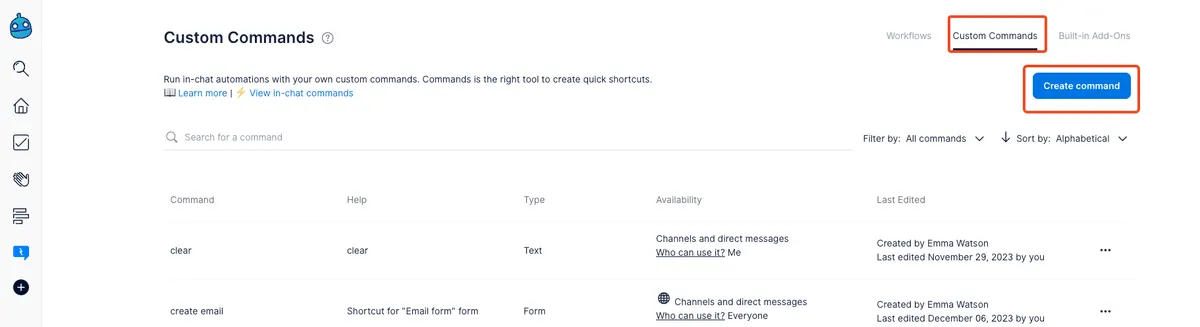
Open the Dailybot web app and navigate to Custom Commands, then click Create command. Make sure Respond with predefined text is selected as the command type.
Give your command a short, memorable name. Good names describe what the content is, not what the command does: /handbook, /deploy-steps, /oncall, /wifi-password. In the description field, add a brief note so other admins know what the command is for.
In the text response box, type the content you want Dailybot to send. This can be a single URL, a multi-line set of instructions, or a combination of text and links. The content is sent exactly as you write it, including line breaks and any basic formatting your chat platform supports.
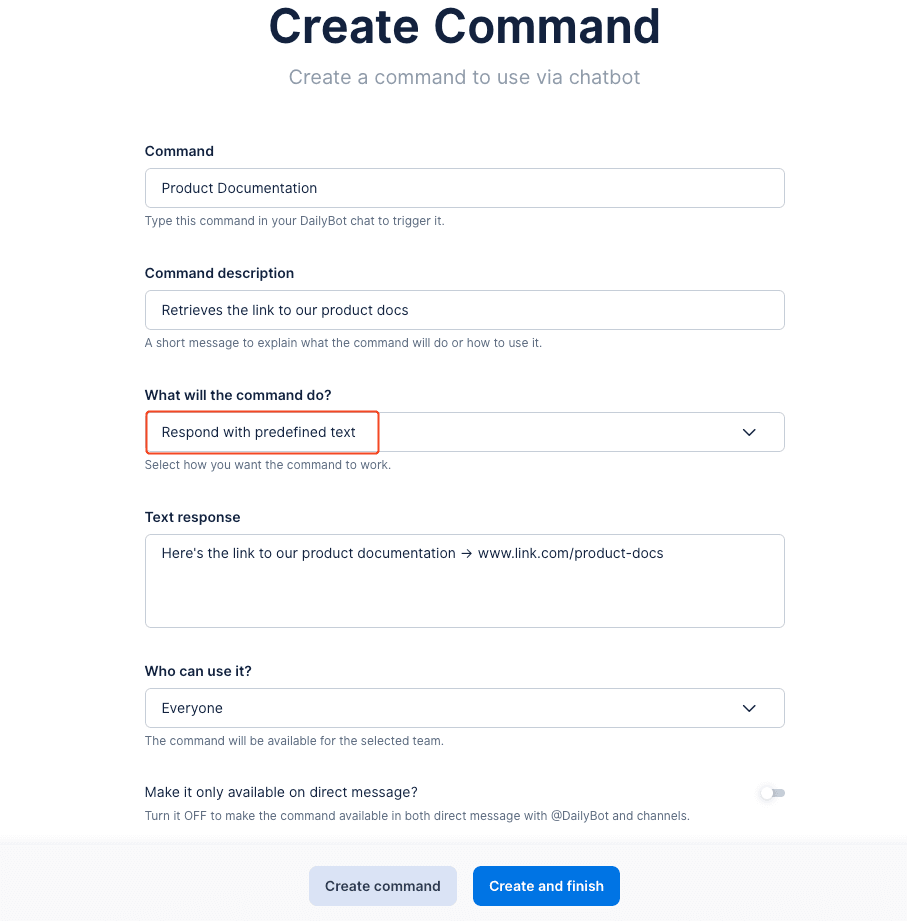
Click Create and finish when you’re done. Your command is now live and ready to use.
Using the command
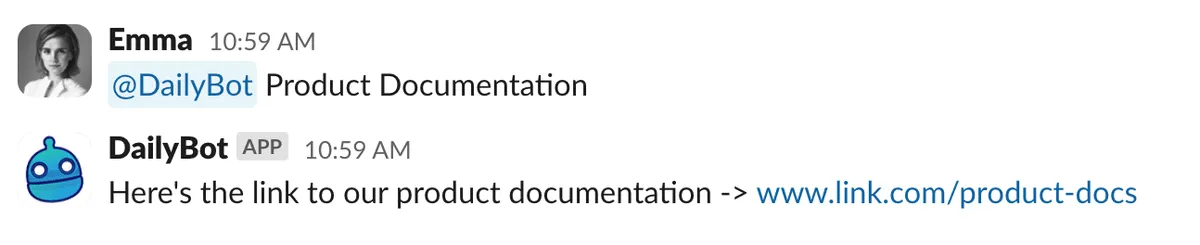
To trigger your new command, open a DM with Dailybot and type the command name. Dailybot replies immediately with the stored text. You can also use the command in a channel by mentioning @Dailybot followed by the command name, which is useful when someone asks a question publicly and you want to share the answer with everyone.
Practical use cases
Predefined text commands work well in many scenarios. Onboarding is a great starting point: create commands for the employee handbook, IT setup guide, benefits portal, and key contacts list so new hires can self-serve instead of waiting for responses. Engineering teams often create commands for runbooks, deployment checklists, and links to monitoring dashboards. Support teams store FAQ answers, escalation procedures, and canned responses for common customer questions.
The key is to identify the information your team shares repeatedly and make it accessible in one step. If you find yourself pasting the same link or instructions more than twice a week, that’s a strong signal to create a command for it.
Managing and updating commands
You can edit a predefined text command at any time from the Custom Commands section. Click the command you want to update, change the text, and save. The new content takes effect immediately for all users. If a command becomes obsolete, you can delete it to keep your command list clean.
Consider reviewing your commands periodically to make sure the content is still accurate. Outdated links or stale instructions can be more harmful than no command at all, so a quick quarterly check goes a long way.
Predefined text commands are a simple but powerful way to put your team’s most-needed information at their fingertips. With Dailybot, setting one up takes less than a minute, and the time saved adds up quickly across the whole team.
FAQ
- What is a predefined text response command?
- It's a command that, when triggered, replies with a fixed text message you've configured. Useful for sharing links, documentation, guidelines, or frequently requested information.
- How do I create a predefined text command?
- Go to Custom Commands, click Create command, select Respond with predefined text, enter your command name and the text response, then save.
- Can I format the text in a predefined response?
- Yes. You can include links, line breaks, and basic formatting supported by your chat platform. The text is sent exactly as you write it.