Getting started with Dailybot forms
Learn what forms are, when to use them instead of check-ins, and how to create your first form for structured data collection.
Forms in Dailybot let your team collect structured information directly inside the chat platforms you already use. Instead of chasing people through email threads or spreadsheets, you define a set of questions once and let team members respond whenever the need comes up. The responses flow into a central place where managers and ops leads can review, export, and act on them.
If you’ve already used check-ins, you might wonder where forms fit in. Check-ins are recurring and schedule-driven: they fire at specific times for specific teams and are great for daily standups or weekly reflections. Forms, on the other hand, are on-demand. Anyone with access to the command can trigger a form at any time, making them ideal for processes that don’t follow a fixed calendar, such as time-off requests, bug reports, or feedback collection after an event.
When to use forms
Think of forms as your go-to tool whenever you need structured input that isn’t tied to a repeating schedule. A few scenarios where forms shine include leave requests that need manager approval, code release checklists before a deployment, access provisioning for new tools, customer feedback collected by support reps, and quick internal surveys after a workshop or all-hands meeting.
The common thread is that the data needs to be consistent and complete. Free-form chat messages work fine for casual updates, but when you need every submission to include the same fields, a form keeps things clean.
Creating your first form
Setting up a form takes just a few minutes, and you don’t need any technical background. Start from the Dailybot web app and follow three steps.
Name and questions
Open the Forms section in the sidebar and click Create form. Give your form a clear name that team members will recognize, then add your questions. You can write an intro message that displays before the first question and an outro message that appears after submission. Both are optional but helpful for giving context.
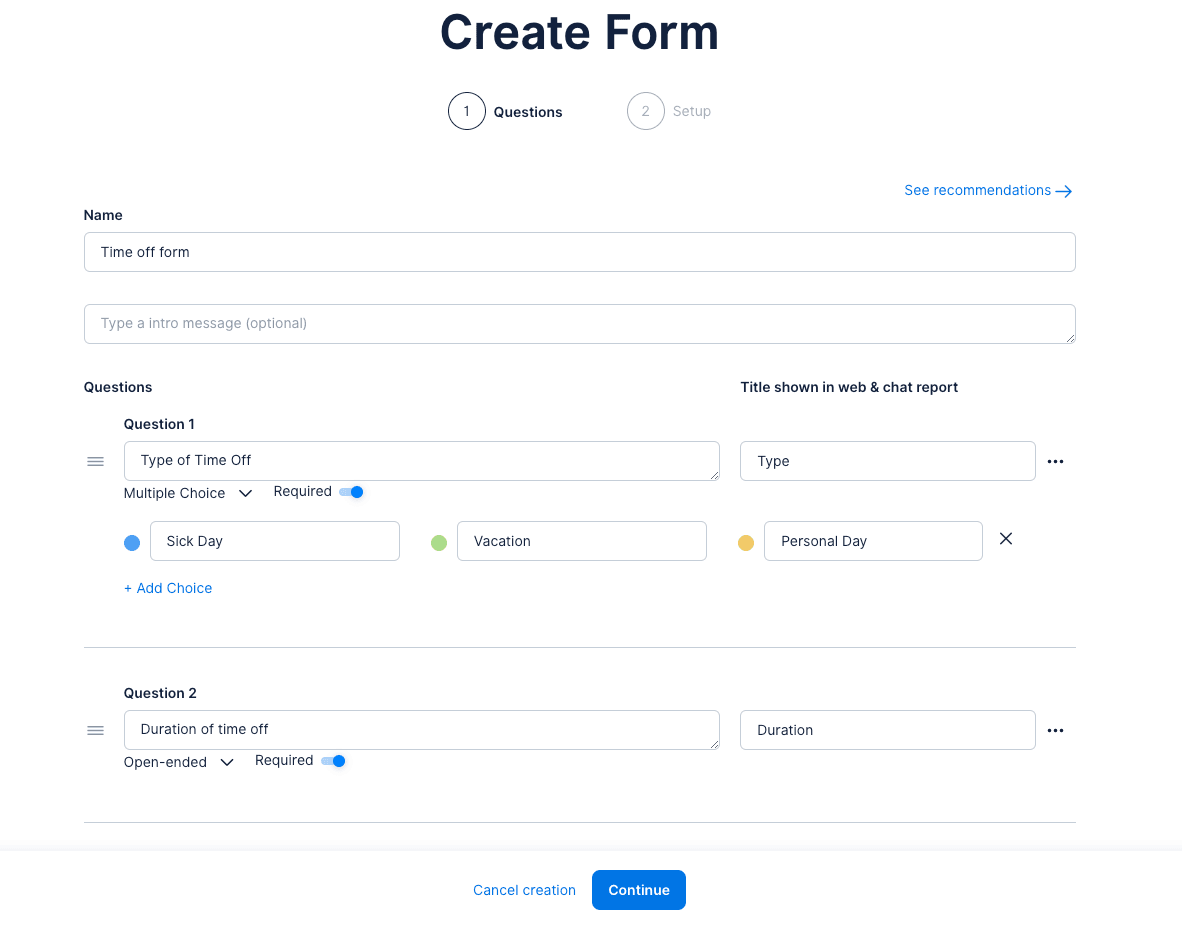
Each question can be one of several types: open-ended text, yes/no, multiple choice, or numeric. Picking the right type makes the form faster to fill out and produces cleaner data for analysis later.
Advanced settings
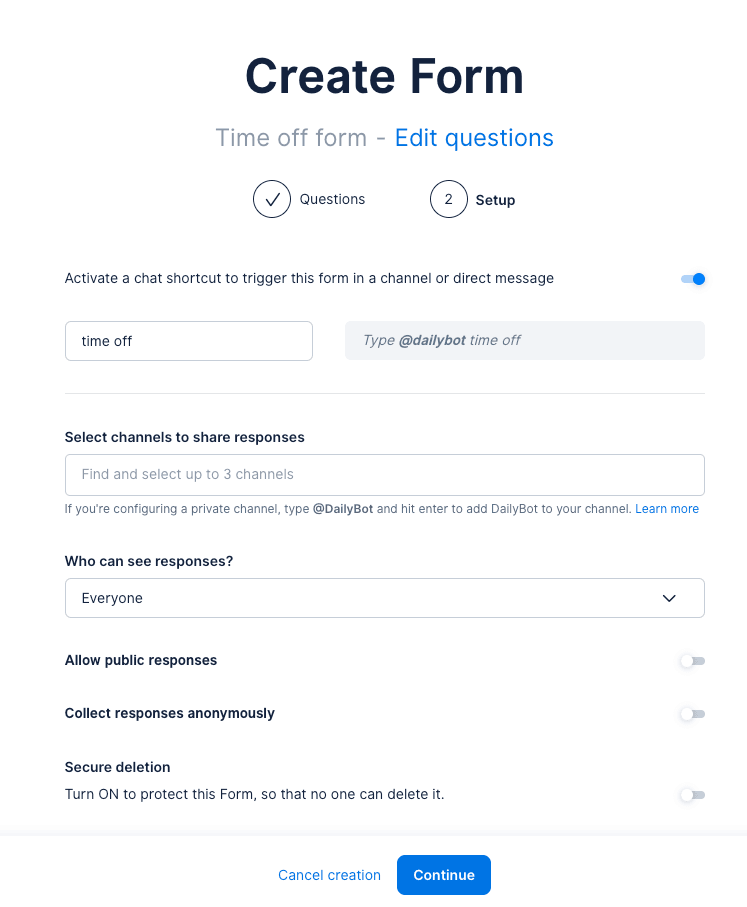
After adding your questions, click Continue to configure the operational details. You’ll set a chat shortcut so team members can trigger the form by typing a command like /time-off in their DM with Dailybot. You can also choose a response channel where submissions are automatically posted for visibility, and adjust privacy settings to control who sees the raw responses.
Save and share
Once you finish the setup, the form is live. Share the command name with your team, and anyone who types it in their chat with Dailybot will be guided through the questions. Responses are stored in the Forms section of the web app, ready for review or export.
Tips for effective forms
Keep your forms short and focused. Five to seven questions is a good target for most use cases. If you find yourself adding more than ten questions, consider splitting the form into two separate ones so respondents don’t lose momentum. Use clear, specific question text, and favor multiple choice or numeric types when the answer set is predictable, since those produce data that’s easier to filter and compare.
It also helps to test the form yourself before sharing it. Trigger it from chat, walk through every question, and confirm that the intro and outro messages read well. A quick dry run catches awkward phrasing or missing options before your team sees the form.
Dailybot forms bring structure to processes that used to live in scattered messages and manual tracking. Once your first form is running, you’ll likely find more opportunities to replace ad-hoc coordination with a repeatable, searchable workflow.
FAQ
- What are Dailybot forms used for?
- Forms collect structured data from team members through chat or the web app. Typical uses include feedback surveys, leave requests, code release approvals, and customer intake.
- How do forms differ from check-ins?
- Check-ins run on a recurring schedule and are tied to specific teams. Forms are on-demand, can be triggered by anyone with a command, and support more question types for ad-hoc data collection.
- How do I create a form in Dailybot?
- Go to the Forms section in the sidebar, click Create form, add your questions, configure advanced settings like a chat shortcut and response channel, then save.