How to fill out and submit a form
A step-by-step guide to answering Dailybot forms from the respondent's perspective, covering chat and web interfaces.
Filling out a form in Dailybot is straightforward, and you don’t need to leave the chat platform you’re already using. This guide walks through the entire process from a respondent’s perspective so you know exactly where to go, what to expect, and what happens once you submit your answers.
Starting a form
To begin, open your direct message conversation with Dailybot in Slack, Microsoft Teams, Google Chat, or Discord. Type the form’s command name, which your team admin set up when creating the form. For example, if the command is /time-off, type that in the chat and send it.
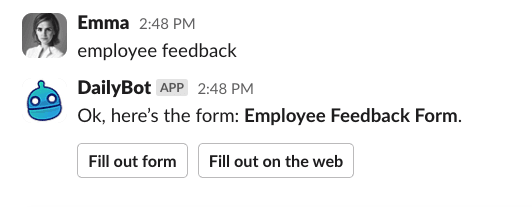
Dailybot recognizes the command immediately and starts the form. If you’re not sure what command to type, ask your manager or check the pinned messages in your team channel. Most teams name commands after the process they support, so they’re usually easy to guess.
Choosing your interface
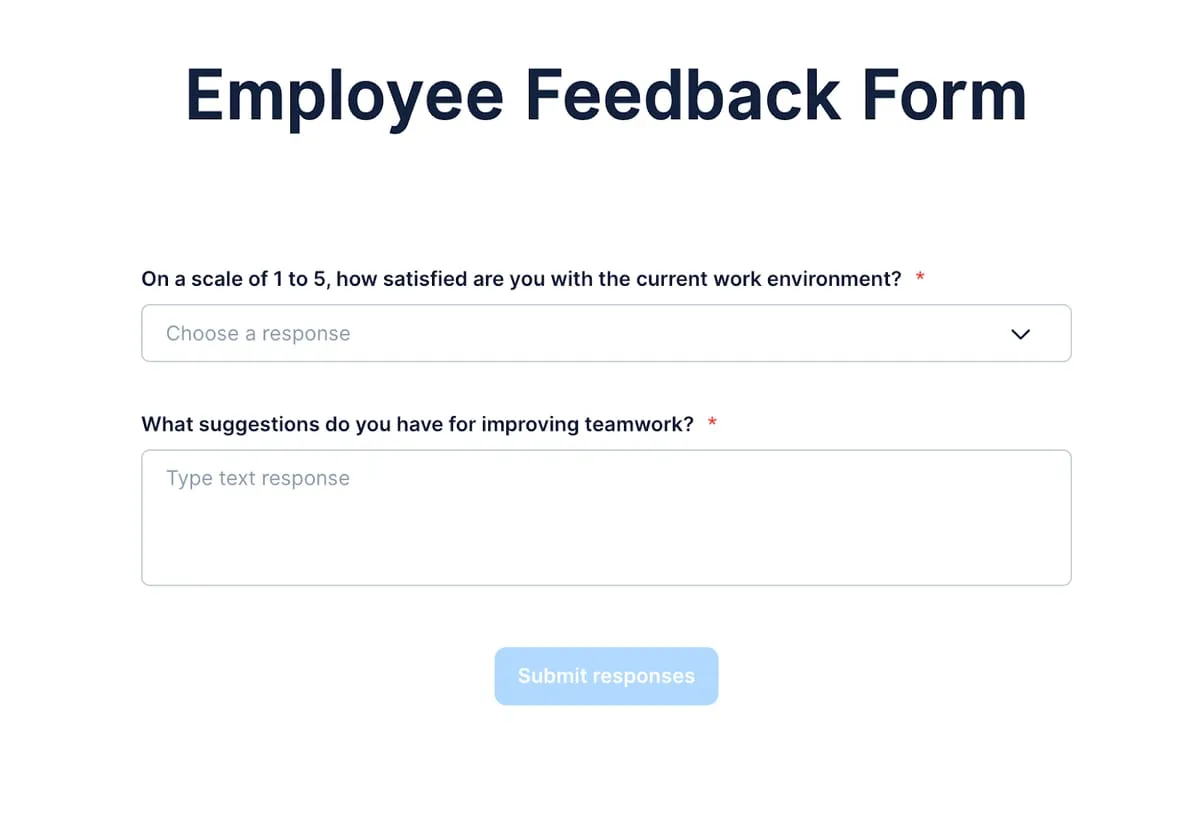
Once the form is triggered, Dailybot gives you two ways to complete it. You can answer directly in the chat, where questions appear one at a time and you reply with your answer in the conversation. This works well for short forms with a handful of questions. Alternatively, you can use the web interface, which opens a dedicated page showing all questions at once. The web option is helpful for longer forms because you can see the full scope before you start, jump between questions, and review everything before submitting.
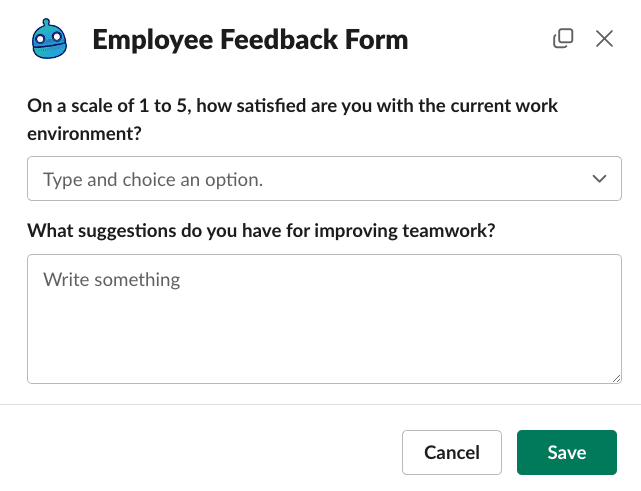
Both interfaces save your answers to the same place, so pick whichever feels more comfortable. Some people prefer the speed of chat for quick submissions, while others like the overview that the web interface provides.
Answering different question types
Forms can include several question types, and each one expects a specific kind of input. Open-ended questions let you type freely, so give as much or as little detail as the question asks for. Yes/no questions present two options (which might be labeled differently, like Approved/Rejected) and you pick one. Multiple choice questions show a list of options, and you select the one that fits. Numeric questions accept only numbers, so if you accidentally type a word, Dailybot will ask you to try again.
Paying attention to the question type helps you respond faster and avoids back-and-forth corrections. If a question feels unclear, it’s fine to answer with your best understanding and add a note. The form creator can always follow up if more detail is needed.
Submitting your responses
After you answer the last question, Dailybot confirms that your submission is complete. If the form has an outro message, you’ll see it at this point, often with a thank-you note or next steps. Your responses are now stored in the Forms section of the Dailybot web app, where admins and managers can review them.
If a response channel has been configured, Dailybot automatically posts a summary of your submission there. This gives the team immediate visibility without anyone needing to check the web app manually. Privacy settings control how much detail appears in the channel, so sensitive information stays protected.
What happens after submission
Your responses become part of the form’s dataset. Managers can view individual submissions, filter by date or respondent, and export the data for reporting or compliance. If the form is connected to a workflow, your submission can also trigger follow-up actions automatically, like sending a notification to an approver or updating a status board.
You don’t need to do anything extra after submitting. The system handles routing, notifications, and storage so you can get back to your work knowing the information is in the right hands.
Dailybot forms remove the friction from structured data collection. By meeting you inside the chat tools you already use, they make it easy to submit information in seconds and keep team processes moving without interruption.
FAQ
- How do I start a form in Dailybot?
- Open your direct message with Dailybot and type the form's command name. Dailybot will immediately begin presenting the questions.
- Can I answer a form on the web instead of chat?
- Yes. When a form is triggered, Dailybot offers both a chat interface (one question at a time) and a web interface (all questions visible at once). You can choose whichever you prefer.
- What happens after I submit a form?
- Your responses are saved in the Forms section of the Dailybot web app. If a response channel is configured, a summary is also posted there for the team to see.