How Dailybot commands automate common actions
Learn what commands are, the types available, and how to create your first chat shortcut to trigger actions in Dailybot.
Commands in Dailybot are chat shortcuts that trigger actions instantly. You type a word or phrase in your direct message with Dailybot (or mention @Dailybot in a channel), and something happens: a stored piece of text appears, an API gets called, a form opens, or custom code runs. They’re the fastest way to turn repetitive tasks into one-step operations that anyone on your team can use.
If you’re familiar with slash commands in Slack or Teams, Dailybot commands work similarly but with more power behind them. Instead of being limited to simple text responses, you can connect commands to external services, trigger data collection, or execute serverless logic, all without leaving your chat platform.
Types of commands
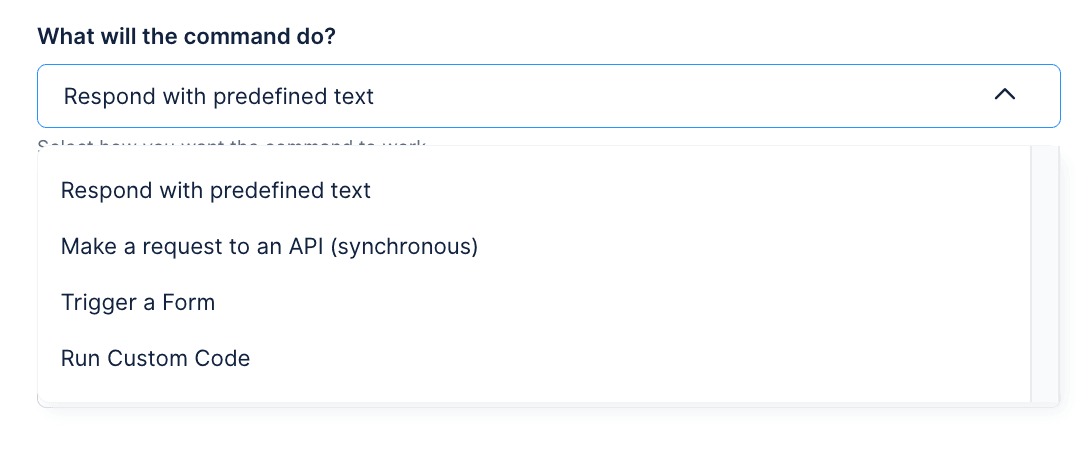
Dailybot supports four command types, and each one serves a different purpose. Understanding what’s available helps you pick the right approach for the task at hand.
Predefined text responses are the simplest type. When someone runs the command, Dailybot replies with a fixed message you’ve configured. This is great for sharing links, reference documentation, team guidelines, or any information that people ask for repeatedly. Instead of digging through bookmarks or wikis, your team types a command and gets the answer immediately.
API requests let you connect Dailybot to external services. When the command runs, Dailybot makes an HTTP request to a URL you specify, using the method, headers, and body you configure. The response can be displayed in chat, making it possible to pull data from third-party tools, trigger actions in other systems, or query internal APIs, all from a chat message.
Form triggers open a Dailybot form when the command runs. This is useful when you want to give people a quick way to start a data collection process, such as filing a bug report, requesting time off, or submitting feedback, without needing to remember the form’s own shortcut.
Custom code executes serverless functions you write. This is the most powerful type and gives developers full control over what happens when the command runs. You can combine API calls, conditional logic, and formatted responses into a single command.
Creating your first command
Setting up a command takes less than a minute. Open the Dailybot web app, click Automation & Add-ons in the sidebar, then select Custom Commands at the top right and click Create command.
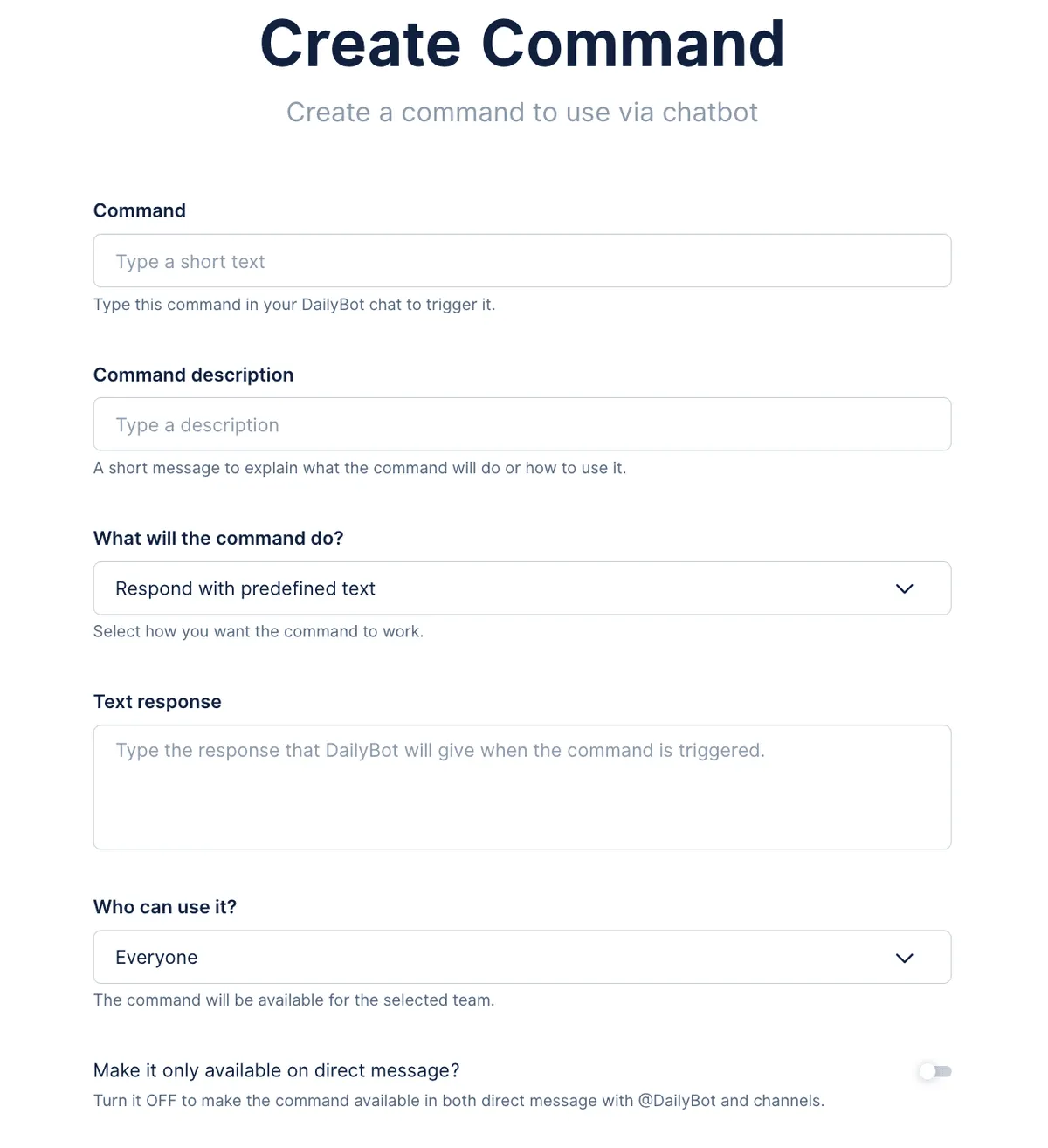
Start by choosing a command name. This is what people will type to trigger the action, so keep it short and descriptive. Something like /docs, /deploy-checklist, or /standup-link works well. Next, select the command type from the dropdown. Depending on your choice, you’ll see different configuration fields: a text box for predefined responses, URL and method fields for API requests, a form selector for form triggers, or a code editor for custom code.
Permissions and visibility
You can control who has access to each command. By default, commands are available to everyone in your organization, but you can restrict them to specific teams if the action is only relevant to a subset of people. For example, a deployment command might only make sense for the engineering team, while a company-handbook command should be open to everyone.
There’s also an option to make a command work only in direct messages with Dailybot. This is useful for commands that return sensitive information or that you don’t want cluttering public channels.
How commands differ from workflows
Commands and workflows are both part of Dailybot’s automation toolkit, but they serve different roles. Commands are user-initiated and run a single action on demand. You type the command, it does one thing, and it’s done. Workflows, on the other hand, chain triggers and actions together. They can run on a schedule, respond to events, include branching logic, and execute multiple steps in sequence.
Think of commands as quick tools and workflows as orchestration engines. A command might call an API to check a service’s status, while a workflow might monitor that status every hour and send an alert if something goes wrong. In many setups, commands and workflows complement each other: you might create a command that triggers a workflow, or a workflow that runs a command as one of its steps.
Dailybot commands give your team instant access to actions, information, and integrations right from the chat. Once you create your first one, you’ll quickly see opportunities to turn more repetitive tasks into simple shortcuts that save everyone time.
FAQ
- What are Dailybot commands?
- Commands are chat shortcuts that trigger specific actions when typed in a DM with Dailybot or by mentioning @Dailybot in a channel. They can return text, call APIs, trigger forms, or run custom code.
- How do commands differ from workflows?
- Commands are user-initiated shortcuts that run a single action on demand. Workflows chain multiple triggers and actions together, often running automatically on a schedule or in response to events.
- How do I create a command in Dailybot?
- Go to Automation & Add-ons in the sidebar, click Custom Commands, then click Create command. Choose a command name, select the type, configure the action, and save.