Exporting form responses for analysis
Learn how to export form data from Dailybot in CSV or XLSX format for reporting, compliance, and trend analysis.
Collecting form responses is only half the story. To turn that data into actionable insights, you’ll often need to pull it out of Dailybot and into the tools your team uses for analysis, reporting, or record-keeping. Dailybot makes exporting straightforward with a few clicks from the web app, and this article covers the full process from start to finish.
How to export form responses
Start by opening the Dailybot web app and navigating to the Forms section from the sidebar. You’ll see a list of all the forms your organization has created, along with a summary of response counts.
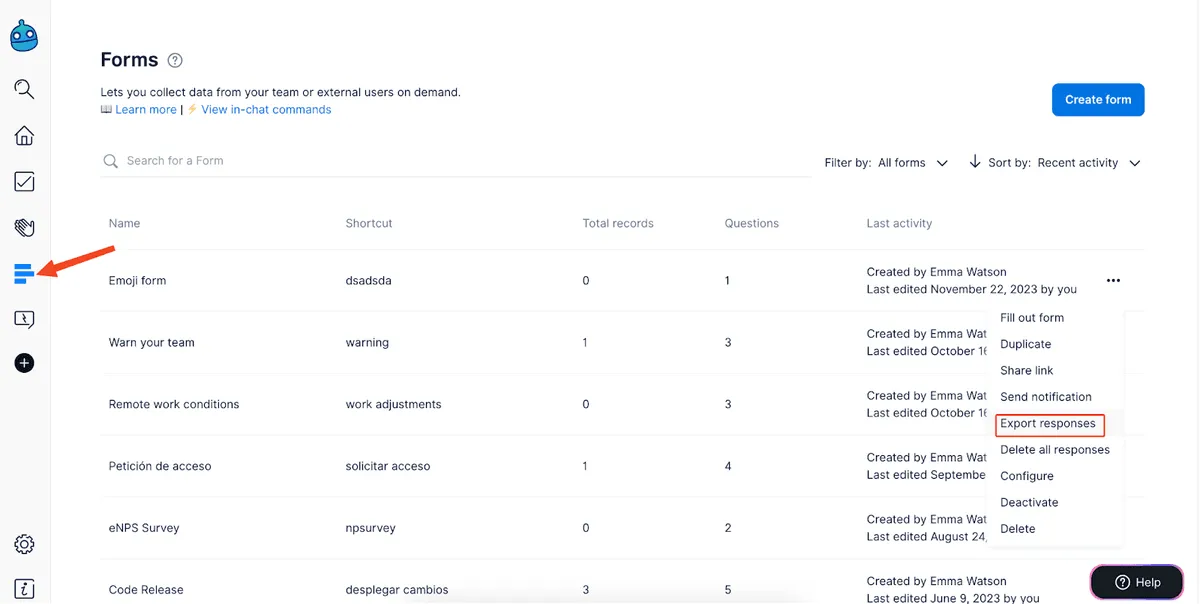
Find the form whose responses you want to export. Click the dropdown menu (the three-dot icon) next to the form name to reveal the available actions, then select Export responses. A dialog appears where you can choose your preferred file format before the download begins.
Available export formats
Dailybot supports two formats, and each serves a different workflow:
- CSV is a lightweight, universal format. It works with virtually any data tool, from Python scripts and SQL databases to Google Sheets and custom dashboards. If you plan to import the data into another system or run automated processing, CSV is the way to go.
- XLSX is the native Excel format. It preserves column headers and basic formatting, so you can open the file and start analyzing immediately without any import steps. This format is ideal for quick reviews, pivot tables, and sharing with colleagues who work in spreadsheets.
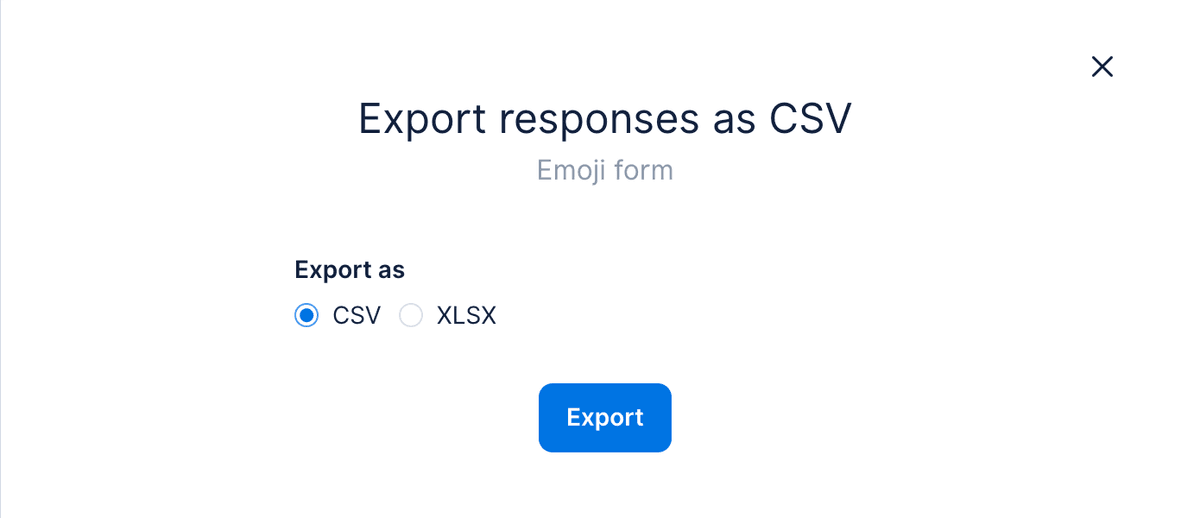
Pick whichever fits your downstream workflow. If you’re unsure, XLSX is the safer default because most spreadsheet applications handle it natively.
What the export includes
The exported file contains every submission for the selected form. Each row represents one response, and the columns map to the questions in your form. In addition to the answers themselves, the export includes respondent information (who submitted it), timestamps (when each response was submitted), and the complete answer for every question in the form.
This structure makes it easy to sort by date, filter by respondent, or calculate totals and averages on numeric fields. If your form has multiple-choice questions, the selected option appears as text in the column, ready for grouping or counting.
Use cases for exported data
Compliance and auditing
Some teams need to maintain records of approvals, requests, or incident reports for regulatory or internal audit purposes. Exporting form data on a regular cadence, whether monthly or quarterly, gives you a timestamped archive outside of Dailybot that satisfies documentation requirements.
Trend analysis
When you accumulate responses over weeks or months, patterns start to emerge. Exporting to a spreadsheet lets you build charts, track averages over time, and spot shifts that might not be visible from individual submissions. For example, a weekly satisfaction survey might reveal a gradual decline that only shows up when you graph the numbers.
Cross-team reporting
Sometimes the people who need the data aren’t Dailybot users themselves. Exporting to XLSX and sharing the file via email or a shared drive makes form data accessible to stakeholders who prefer traditional reporting tools.
Data integration
If your team runs dashboards in tools like Notion, Airtable, or a custom analytics platform, CSV exports slot directly into those pipelines. You can automate the import step on the receiving end so the data flows from Dailybot into your reporting tool with minimal manual effort.
Tips for clean exports
Review your form design before you start collecting at scale. Consistent question types and clear labels translate directly into cleaner export files. A numeric question always produces a column of numbers, while an open-ended question produces free text that’s harder to summarize automatically. Planning ahead saves cleanup time later.
If you only need a subset of responses, use the available filters before exporting. Filtering by date range or respondent narrows the file to exactly what you need, which is especially helpful when a form has been collecting data for months.
Dailybot’s export feature bridges the gap between chat-based data collection and the analytical tools your team already relies on. With just a few clicks, you can move from raw responses to polished reports, keeping your data workflow simple and connected.
FAQ
- What export formats does Dailybot support for form responses?
- CSV (comma-separated values) for database imports and custom tools, and XLSX (Excel) for immediate use in spreadsheet applications like Excel or Google Sheets.
- What data is included in the export?
- Every submission for the selected form, including respondent information, timestamps, and the complete answer to each question.
- Can I filter responses before exporting?
- Yes. You can filter by date range and respondent before triggering the export, so the file contains only the data you need.