Using variables in workflows
Learn what variables are, the types available in Dailybot workflows, and how to use them to create dynamic, personalized automations.
Variables are what make Dailybot workflows dynamic instead of static. Without variables, every workflow action would send the same message, use the same data, and ignore the context that triggered it. With variables, you can personalize messages with the responder’s name, include answers from a check-in, reference form data, insert timestamps, and adapt content based on what actually happened.
This article covers how variables work, the categories available, and practical patterns for using them effectively in your automations.
How variables work
A variable is a placeholder written in double-curly-brace syntax, like {{user.name}} or {{response.answer_1}}. When the workflow runs, Dailybot replaces each placeholder with the actual value from the current execution context. If a workflow is triggered by a check-in submission, for example, variables give you access to the responder’s name, the answers they provided, the timestamp, and other metadata.
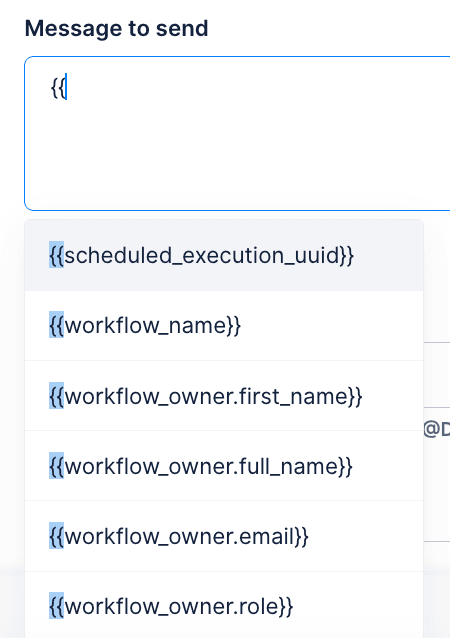
To insert a variable, type {{ in any text field within a workflow action. Dailybot displays a dropdown list of all available variables, organized by category. You can browse the list or type to search for the one you need. Once you select a variable, it appears as a placeholder in your text, and the actual value gets filled in each time the workflow runs.
Variable categories
Variables are grouped by where their data comes from. The available categories depend on your workflow’s trigger type, because each trigger exposes a different set of data.
User variables
User variables reference information about the person who triggered the workflow or who the action is targeting. Common user variables include the person’s name, email, team membership, and timezone. These are useful for personalizing messages, like greeting someone by name or adjusting content based on their role.
Response variables
When a workflow is triggered by a check-in completion or a form submission, response variables give you access to every answer the person provided. Each question maps to a numbered variable like {{response.answer_1}}, {{response.answer_2}}, and so on. You can use these to include specific answers in follow-up messages, route data to different channels based on content, or pass information to an API call.
Event variables
Event variables contain metadata about what triggered the workflow. This includes timestamps, event types, and identifiers that help you build context-aware actions. For example, you might include the submission time in a notification so the recipient knows exactly when the event occurred.
Team and organization variables
These variables reference broader organizational data, like team names, channel identifiers, and configuration values. They’re helpful when you want to post to a specific channel dynamically or include team-level context in a message.
Practical examples
Personalized check-in summaries
A workflow triggered by a completed check-in can send a summary to a team channel using variables. The message might read: “{{user.name}} completed their standup. Highlights: {{response.answer_1}}. Blockers: {{response.answer_3}}.” This turns raw check-in data into a formatted, readable update without anyone needing to compile it.
Dynamic form notifications
When a form submission triggers a workflow, you can use response variables to build targeted notifications. If question 2 asks for priority level and the answer is “critical,” you might route the notification to an escalation channel. The message body can include all the relevant form answers so the recipient has full context without opening the web app.
Context-rich API payloads
If your workflow includes an API call action, variables let you build dynamic request bodies. You can pass the submitter’s email, their answers, and the event timestamp to an external system, ensuring the API always receives current, accurate data. This is particularly useful for integrating with ticketing systems, CRMs, or custom dashboards.
Tips for working with variables
Start by exploring the variable dropdown in your workflow actions. Type {{ and browse the available options before building your message. This helps you discover variables you might not have known about, especially when working with a trigger type for the first time.
Keep your variable usage readable. When building a message template with multiple variables, draft the final output on paper first to make sure it reads naturally. A message packed with too many variables can feel robotic, so mix dynamic data with static text that provides context and a human touch.
Test your workflow with a real trigger to verify that variables resolve correctly. Some variables might be empty if the triggering event didn’t include that data, so check for edge cases. You can also use fallback text in your messages to handle situations where a variable might not have a value.
Variables are the feature that takes Dailybot workflows from simple sequences to intelligent automations. By connecting each step to the data that triggered it, you create workflows that are relevant, personalized, and genuinely useful for your team.
FAQ
- What are variables in Dailybot workflows?
- Variables are placeholders that get replaced with real data when a workflow runs. They let you reference information from previous steps, user profiles, team details, and event payloads to create dynamic content.
- How do I insert a variable into a workflow action?
- Type {{ in any text field within a workflow action. Dailybot displays a list of available variables organized by category. Select the one you need, and it gets inserted as a placeholder.
- Can I use variables from one workflow step in a later step?
- Yes. Each step can output data that subsequent steps can reference. For example, a check-in trigger makes response data available to all actions that follow it.